PilotIQ Logbook is your digital pilot logbook for iPhone and iPad — log flights offline, track currency and flight‑time limits, get instructor sign‑offs, and generate CASA/FAA/EASA‑style reports. This guide walks you through it screen by screen.
1. Install & sign in
- Download PilotIQ Logbook from the App Store and open it.
- Tap Create account (or Sign in if you already have a PilotIQ account — it's the same login as the website).
- Sign in with email and password, Continue with Apple, or Continue with Google. If your flying school gave you an invite code, enter it on the sign‑up screen to link your account to them.
- First time in, a short onboarding sets your authority (CASA / FAA / EASA), category (aeroplane or helicopter) and licence — you can change these any time in Settings.
2. The Home tab
Home is your at‑a‑glance status: total hours, a 6‑month trend, your most recent flight, and anything needing attention.
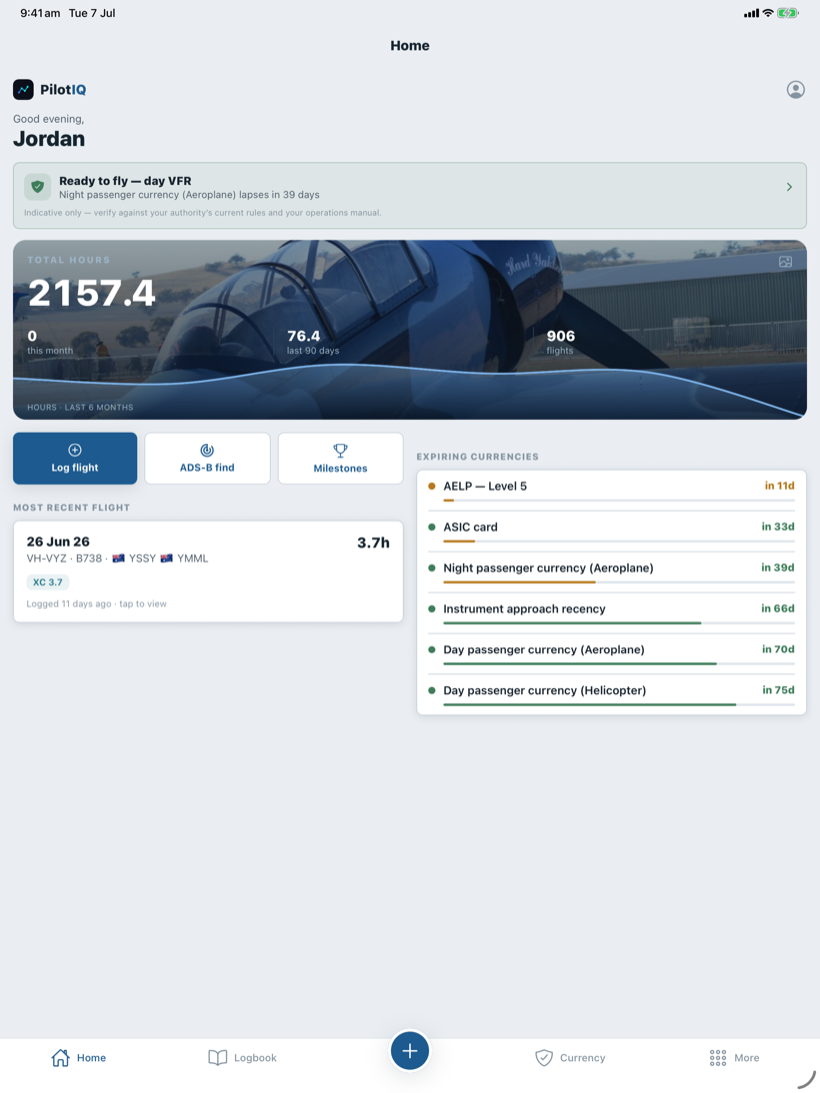
- The Total hours card shows your career total plus this‑month and last‑90‑day figures. This is your airborne total — hours flown in an aircraft. Simulator time is a separate category and is never rolled into it.
- A combined Total experience figure (aircraft + simulator) is also shown — this is the number that counts toward licence and rating eligibility under CASA, FAA and EASA.
- A red banner appears if a currency item needs attention.
- Expiring currencies lists what's coming due, soonest first.
Summary cards hide when they're zero, so you only ever see the totals that apply to your flying — no empty rows for hours you don't have.
3. Logging a flight
Tap the centre + button on the tab bar to open New flight.
- Pick aeroplane or helicopter, then your aircraft (type a registration to auto‑fill type/class, or tap a saved aircraft).
- Set the date, departure and arrival aerodromes (and a flight number for airline/commercial sectors), and your position (PIC, Dual, Co‑pilot/SIC, Student, Instructor, QFI, aircrew…). Choosing PIC auto‑fills "Self" as pilot in command; picking SIC, Student or an aircrew role logs those hours to the matching total.
- Enter your block times (Out/Off/On/In, UTC). PilotIQ auto‑calculates Total from your block time — you can override it.
- Fill the time breakdown (dual, day, night, instrument, etc.). Tap Suggest night from twilight to estimate night time from civil twilight at your departure aerodrome/airport.
- Record landings by type — day and night, full‑stop, touch‑and‑go and (for helicopters/floatplanes) water or deck — and any instrument approaches, each tagged as 2D (non‑precision, e.g. LNAV/VOR/NDB) or 3D (precision/vertically‑guided, e.g. ILS/LPV).
- Tap Save flight.
ICUS, instructor and hood time: the time breakdown also captures ICUS (in‑command‑under‑supervision — the command experience CPL/ATPL applicants need for the Part 61 tables), Instructor time (hours given as instructor), and simulated instrument (hood) time flown in a real aircraft, logged separately from full‑flight‑simulator time.
RAAus flights: PilotIQ auto‑detects a RAAus flight from the registration (e.g. 24‑xxxx), and clears it for VH‑ aircraft — so your RAAus hours are kept separate while still counting toward your RPL/PPL aeronautical experience. You can toggle the flag by hand if a registration is unusual.
Find my flight (ADS‑B): on a new flight, tap Find my flight (ADS‑B) and enter your aircraft's registration — PilotIQ pulls the route and Out/In times from public flight data and pre‑fills them for you.
Import your history: Settings → Logbook data → Import flights brings your whole back‑catalogue across in one go — a CSV/Excel export from ForeFlight, LogTen or MCC PILOTLOG, or a GPS track (GPX) from OzRunways. PilotIQ maps the columns automatically and skips anything already in your logbook.
4. The Logbook tab
Your full flight history with running totals.
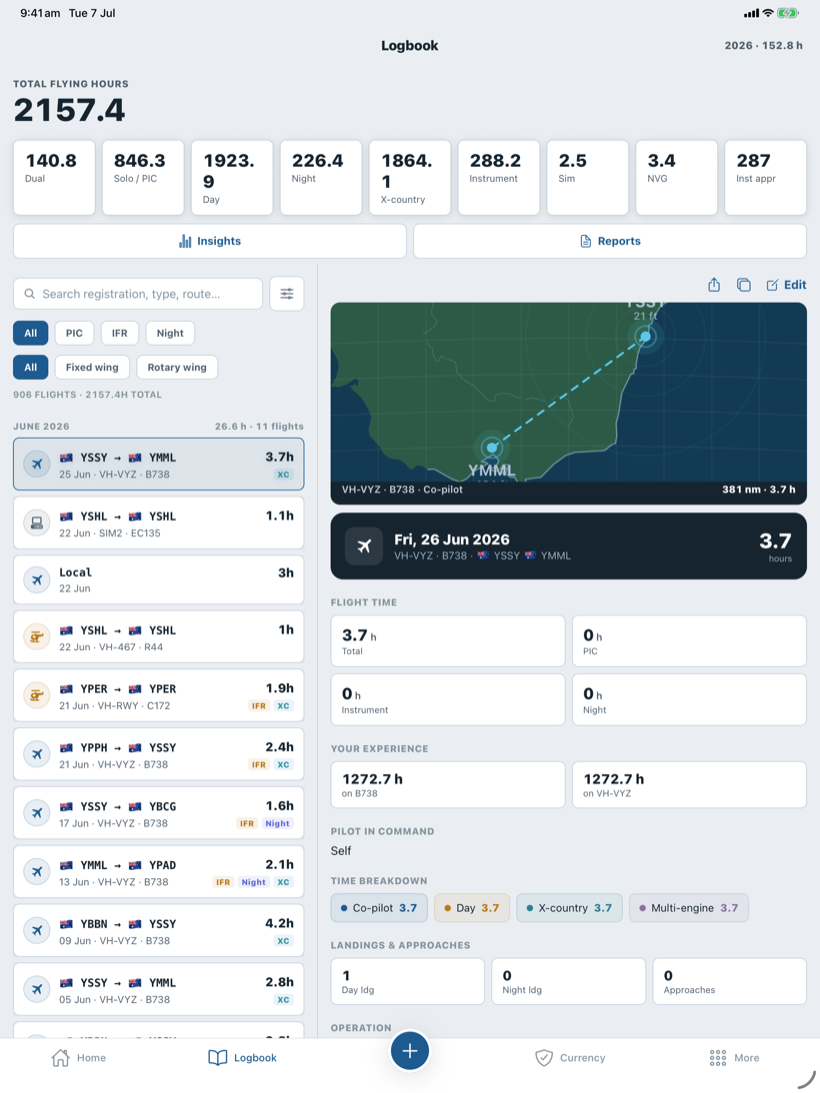
- The headline shows total flying hours; the stat cards break down dual, PIC, night, cross‑country, instrument and more.
- Search by registration, type or route, or tap the filter icon to filter by date range, aircraft, flight type or people.
- Tap any flight to view or edit it. Swipe a flight to duplicate (great for repeat circuits) or delete.
- Tap Reports to generate a PDF (see §7).
Works across your devices. Your logbook syncs between iPhone, iPad and the web. If a flight was edited on another device since you last opened it, PilotIQ shows a reconcile prompt — keep this version or keep that one — rather than silently overwriting your record, so a change made on your iPad can never quietly clobber one you made on your phone.
5. Insights
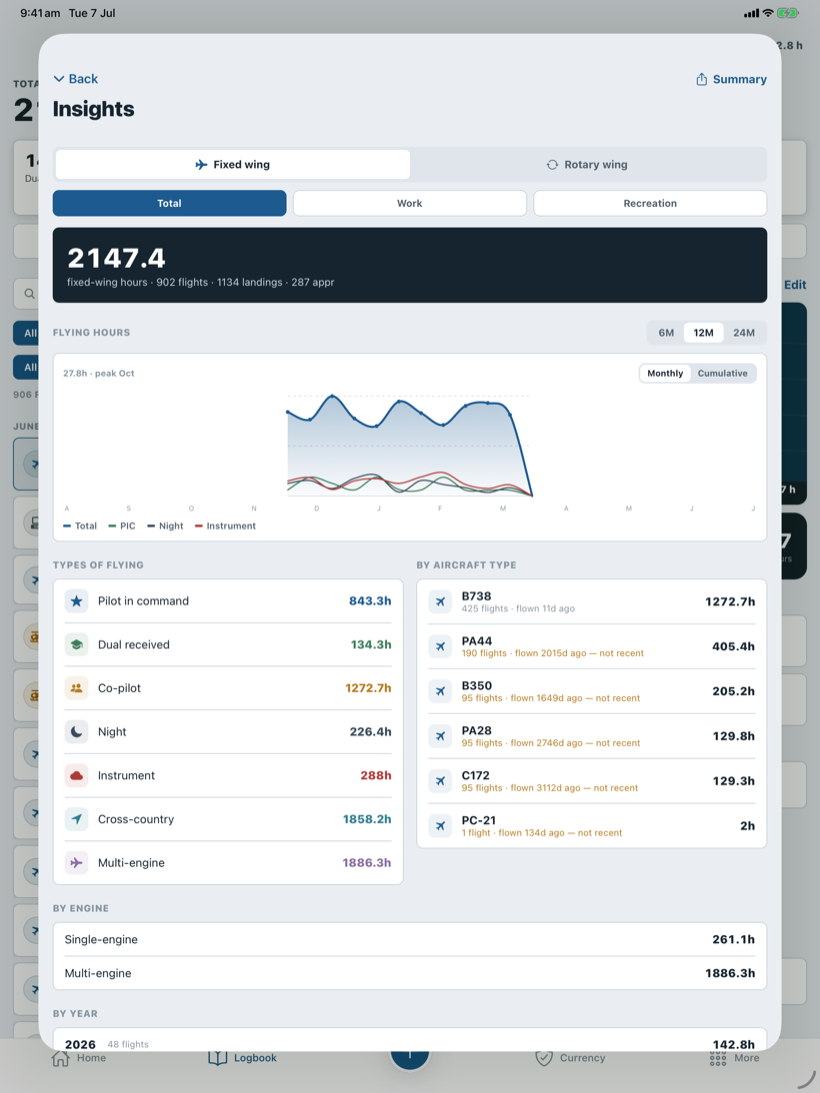
Tap Insights (from Home or the Logbook tab) for charts of your flying over time, hours by type, by aircraft and by month, plus progress toward your next licence's minimum hours.
6. Currency
The Currency tab tracks everything that has to stay valid — flight review, medical, night, instrument recency, your AVID card, and — if you fly recreationally — your RAAus flight review, membership and aircraft registration, plus any custom items.
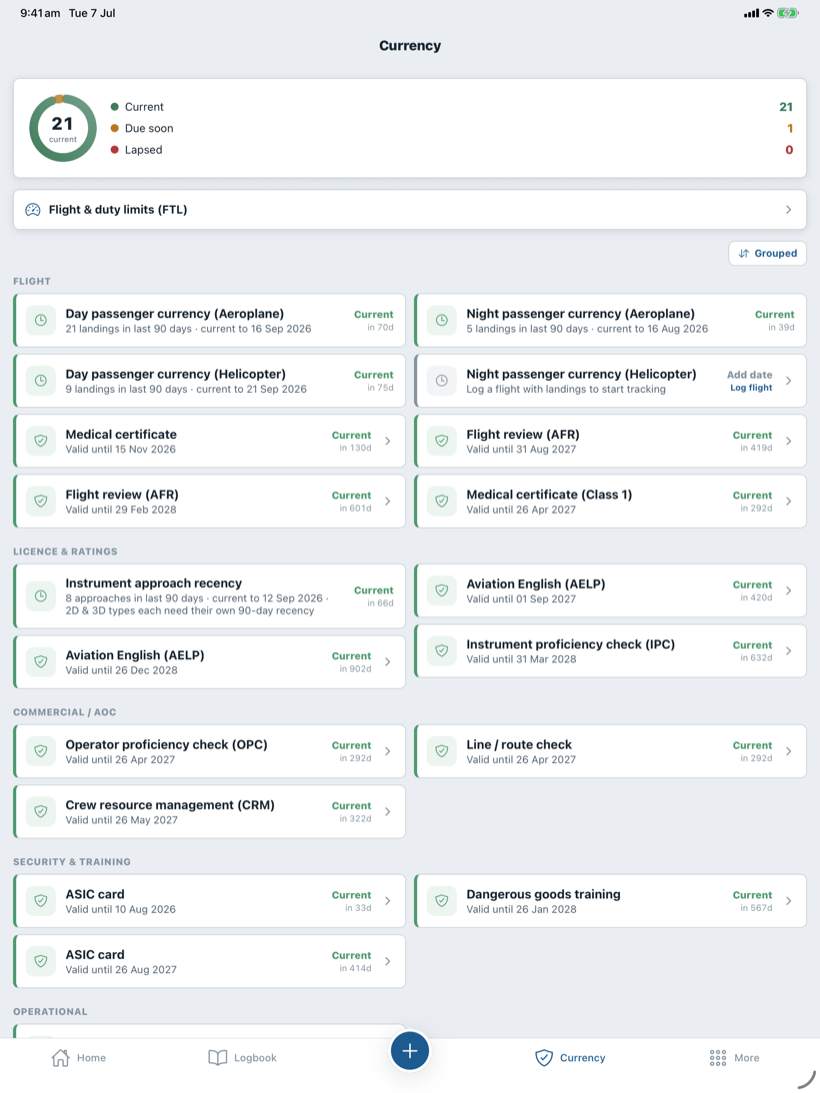
- Items are colour‑coded and sorted by priority, so the next thing to renew is always on top.
- Tap Add currency to track a custom item.
- Your licence and medical documents live here too — photograph them once and they're stored, encrypted, on your account.
- Turn on expiry reminders in Settings to get a push notification before anything lapses.
7. Reports
From the Logbook tab → Reports (or Settings → Logbook data) you can generate professional PDFs:
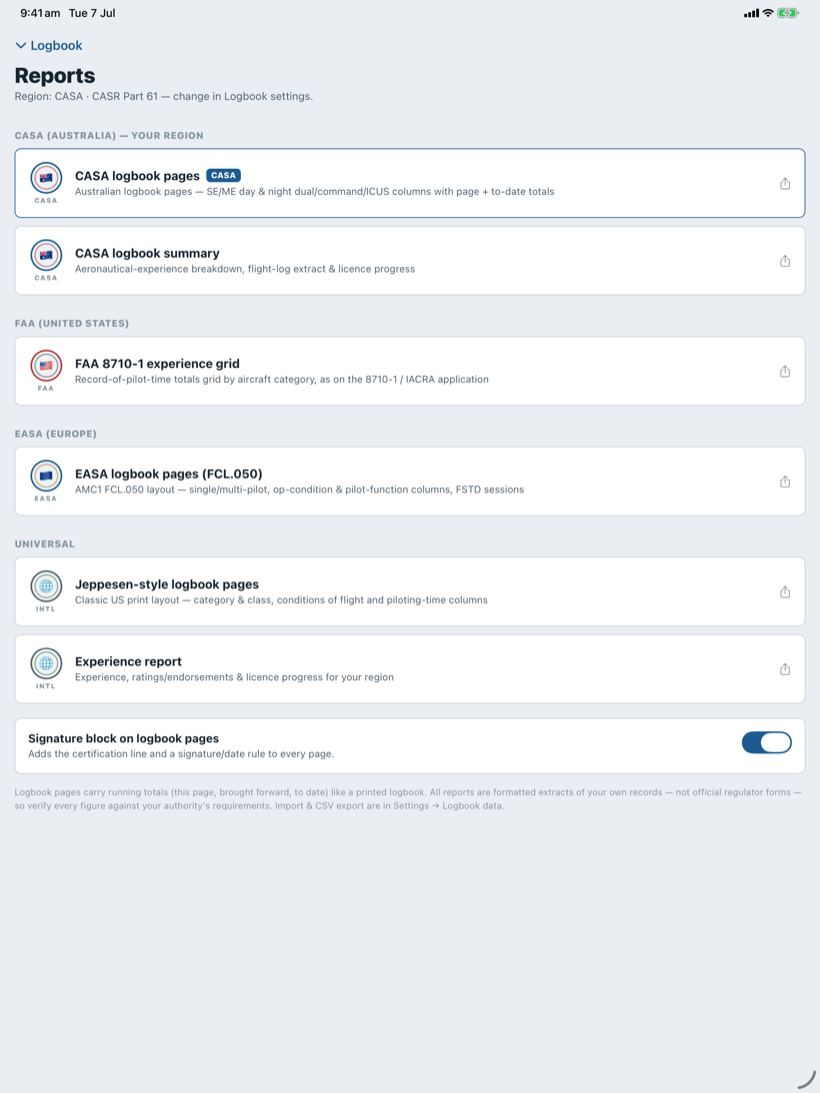
- CASA logbook summary — Part 61 aeronautical‑experience breakdown + flight‑log extract.
- Flight experience report — totals, recency and hours by aircraft type.
- 8710‑style (FAA) experience record and EASA FCL.050 logbook layout — each with its Part 61 experience breakdown.
- Airline / interview pack (from My profile) — the command, ICUS, multi‑crew, turbine and recency figures carriers ask for.
Reports are formatted extracts of your own records to support an application or review — not official regulator forms.
8. Instructor sign‑offs
Need a flight certified? Open the flight (or save a new one) and tap Request instructor sign‑off. Pick the endorsement, then either send the request to an instructor in your organisation, or generate a code/QR any instructor or examiner can use — they open PilotIQ (or the website Verify page), enter the code, and certify it. Certified entries are locked with a tamper‑evident audit trail.
9. Settings
- Logbook settings — region (CASA/FAA/EASA), entry time format (decimal vs HH:MM), total‑time calculation, collapsible sections, instructor tools and more.
- Security — Face ID / Touch ID app lock and two‑factor authentication.
- Logbook data — import, export (CSV) and reports.
- My profile — your details, your pilot identifier (ARN / certificate number / licence number / service number), and your personal aircraft.
- Subscription — your plan and what's unlocked.
PilotIQ Logbook keeps your records on‑device and backs them up to your account; you remain responsible for the accuracy of your logbook.